
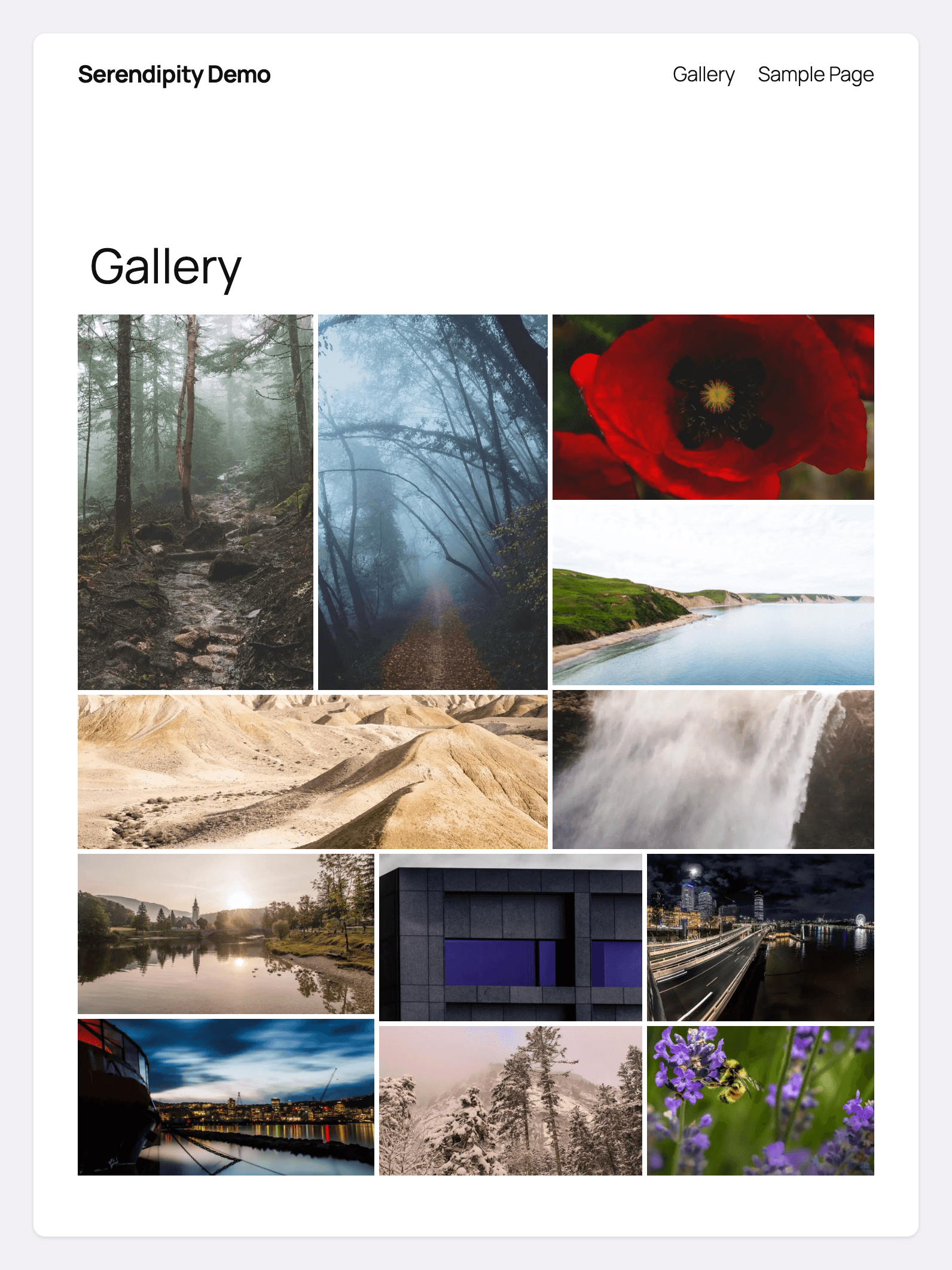
Serendipity is a gallery block. You give it a space and a set of photographs, and it partitions that space into unequal tiles, cropping each photograph to fit its tile. Compose a mosaic you like, save it, and it stays as you left it. Desktop, tablet and mobile widths each keep a layout of their own.
This page covers both editions. Serendipity is free. Serendipity Deluxe is a separate plugin that adds Layout Studio, pan & tilt, a built-in carousel lightbox, three more hover styles and eight more block patterns. Every section that applies only to Serendipity Deluxe says so in its heading.
Installation
Serendipity Deluxe
After you buy Serendipity Deluxe, download its zip file from your GhostLabs account at enter.theghostlab.io/account. Your license key is in your receipt email.
Then, in WordPress:
- Go to Plugins and open the Add Plugins screen, then click Upload Plugin at the top.
- Choose the zip file and click Install Now.
- Click Activate Plugin.
- Go to Settings → Serendipity Gallery. On the Licenses tab, paste your key into the License Key field and click Save Changes. Once the key is accepted, the status reads License Active.
That screen holds your license key, plus a Renew! tab once the license has expired. Every gallery setting is in the block.
If the free Serendipity plugin is already active on the site, these are the same steps. See Switching from Serendipity to Serendipity Deluxe below for what happens when you activate.
Before the key is saved
Without an active license, Serendipity Deluxe works the way the free plugin does: the block, the mosaic, saved layouts at every breakpoint, the lightbox links, the Fade-Up hover style and the four starter patterns. What waits for the key is everything Serendipity Deluxe adds: Layout Studio, pan & tilt, the built-in carousel, the three extra hover styles and the eight extra patterns. Until then, the extra hover styles, the carousel and Layout Studio show a notice in the block sidebar saying they need an active Serendipity Deluxe license, and the eight extra patterns don't appear in the inserter.
Serendipity (free)
Serendipity is free. There is no license key, no account and no purchase step.
Its WordPress.org directory listing is not live yet, so there is no public download today. If you already have the zip file, install it the same way: upload it on the Add Plugins screen, click Install Now, then Activate Plugin.
Once the directory listing goes live, you will be able to install it by searching from the same screen, and the steps for that route will be added here.
The free plugin's own screen, Settings → Serendipity, holds no gallery settings. It shows what the free plugin includes and what Serendipity Deluxe adds.
Switching from Serendipity to Serendipity Deluxe
Serendipity Deluxe is a separate plugin, and it installs beside the free one in a folder of its own. Nothing is moved or converted. Both editions read the same block, and every gallery and its saved layouts live in your posts.
On the free plugin's Settings → Serendipity screen, open Already own Serendipity Deluxe? with the Have a license? button. It lists three steps:
- Download Serendipity Deluxe from your account. The link opens your GhostLabs account in a new tab.
- Upload it to this site, on the Add Plugins screen, as in Installation above. If your account cannot install plugins on the site, the panel says so and asks you to have whoever manages plugins there install it.
- Activate Serendipity Deluxe, then enter your license key in its settings.
The panel does none of this itself. Each step happens in your account or on WordPress's own screens.
When you activate Serendipity Deluxe, it deactivates the free plugin, because the two cannot run together. A notice then confirms three things:
- Serendipity Deluxe is active, and every gallery and saved layout is exactly as it was.
- Your license key goes in Settings → Serendipity Gallery, which the notice links to. Nothing carries a key across, so enter it there.
- The free plugin has been deactivated, and you can delete it from the Plugins screen whenever you like.
The two settings screens have different names: Settings → Serendipity in the free plugin and Settings → Serendipity Gallery in Serendipity Deluxe.
Deploying with WP-CLI. The free plugin is switched off the next time any wp-admin page loads. Until then, both plugins are active as far as WP-CLI, the REST API and the front end can tell. Load wp-admin once after activating, or deactivate the free plugin yourself.
Adding a gallery
In the editor, add the Serendipity Gallery block, then click Add Images and choose your photographs from the media library. To change them later, use Edit Gallery in the block toolbar.
The block supports wide and full alignment.
Composing and saving layouts
Serendipity does not keep every photograph whole, and that is the point. It partitions the space you give it and crops each photograph to fit its tile, so the mosaic fills that space instead of running on down the page. Each crop is centered. With Serendipity Deluxe's pan & tilt, you choose where it falls.
The three breakpoints
The block toolbar has three buttons: Desktop, Tablet and Mobile. They switch the editor's preview width, and they are the same setting as the editor's own preview menu, so the block always shows the breakpoint you are composing for.
A button is shown filled once its breakpoint has a saved layout. Its label says the same thing in words: hover over it to read Desktop — layout saved or Desktop — no layout saved yet.
On your site, the breakpoints are set by the width of the visitor's browser window:
- Mobile — up to 440 pixels
- Tablet — 441 to 780 pixels
- Desktop — 781 pixels and wider
All three are in both editions.
Saving a layout
Until a layout is saved, the mosaic is composed fresh every time the editor loads. That is by design. Keep refreshing until you like what you see, then save it.
In the block sidebar, Layout Settings has a Layout button, which changes with the breakpoint you are on:
- With no layout saved for this breakpoint, it reads Save Desktop Layout, Save Tablet Layout or Save Mobile Layout. Click it to keep the composition on screen.
- With a layout saved, it reads Refresh Layout. That composes a new mosaic and leaves the breakpoint unsaved, so the button goes back to Save Desktop Layout. Save the new one, or refresh again. Until you save, this breakpoint has no layout of its own.
The block toolbar has two more controls:
- Refresh Layout & Save composes a new mosaic and saves it straight away.
- Reset Gallery Layout appears once the breakpoint has a saved layout, and discards it. The breakpoint then shows what your site would show in its place, as described below.
A layout is part of the block, so it is stored when you save the post.
Breakpoints you have not saved
A breakpoint with no layout of its own borrows the nearest one that has, scaled to fit. If Tablet is unsaved and both Desktop and Mobile are saved, it borrows Desktop.
A gallery with no saved layout at any breakpoint is composed afresh each time the page loads, so visitors see a different mosaic on every visit. Save at least one.
Changing the photographs
A saved layout is drawn for a set number of photographs. When you add or remove one, the saved layouts no longer fit, and the gallery is composed afresh at every breakpoint. Use Refresh Layout & Save at each breakpoint you want to keep.
Replacing a photograph with another keeps the layout, because the number stays the same.
Stack on Mobile
Stack on Mobile is the one exception to a gallery filling its space. It appears in Layout Settings only while the Mobile breakpoint is selected. Turned on, it drops the mosaic at mobile widths and stacks the photographs in the normal flow of the page.
Block settings
Select the gallery and open the block sidebar.
Layout Settings
The panel includes:
- Gap Size (px) — the space between tiles, from 1 to 10 pixels. The default is 1.
- Minimum Height (px) — from 360 to 720 pixels. The default is 720. Once a breakpoint has a saved layout, it keeps its own height, so Desktop and Mobile can differ.
- Thumbnail resolution — the image size the tiles are built from. The default is Medium.
- Hover Styles — see below.
- Stack on Mobile — see Composing and saving layouts above.
- Layout — the save and refresh button, also described above.
Hover styles
What a tile does when a visitor points at it.
- None
- Fade-Up — the default. It brings up the photograph's caption.
Serendipity Deluxe adds three more: Split Reveal, Zoom and Blur Focus, and Card Flip.
In the free plugin, the three are still listed. Choosing one shows a notice naming it and the style your gallery still uses, and the gallery does not change.
Lightbox
What happens when a visitor clicks a photograph is set in Lightbox Settings → Lightbox:
- Your lightbox plugin (default) — links each image to its full-size file and groups the gallery, so a lightbox plugin you already run can pick it up and page through it.
- Link to image file — links each image to its full-size file without grouping, for lightboxes that do their own grouping.
- Link to attachment page — links each image to its attachment page.
- No link — nothing happens on click.
- Built-in carousel — Serendipity Deluxe only. See below.
The default needs no setup. These four lightbox plugins were installed and tested against a Serendipity gallery, and all four picked it up with no configuration: Firelight (Easy FancyBox), Responsive Lightbox & Gallery, FooBox, and Lightbox with PhotoSwipe.
If yours needs an attribute the gallery does not carry, see For developers below.
The built-in carousel (Serendipity Deluxe)
Choose Built-in carousel and the gallery opens each photograph in a carousel of its own, with no lightbox plugin needed. Its options appear under the select:
- Carousel Controls — Dot Navigation shows a dot for each photograph. Snap Display shows a counter, such as 3 / 9. None shows neither. The previous and next buttons are there either way.
- Show carousel captions — shows each photograph's caption in the carousel.
- Play as a slideshow — the carousel moves on by itself, and stops as soon as the visitor takes over. It does not play for visitors who have asked their device for reduced motion.
- Seconds per slide — from 2 to 15, shown once the slideshow is on.
The carousel's script and styles are not part of the page. They are fetched the first time a visitor opens a gallery that uses the carousel.
In the free plugin, Built-in carousel is still listed. Choosing it shows a notice, and the gallery keeps the lightbox setting it had.
Block patterns
Open the inserter, choose Patterns, and pick the Serendipity category. Each pattern arrives with sample photographs and a composition already saved. Replace the photographs with Edit Gallery in the block toolbar.
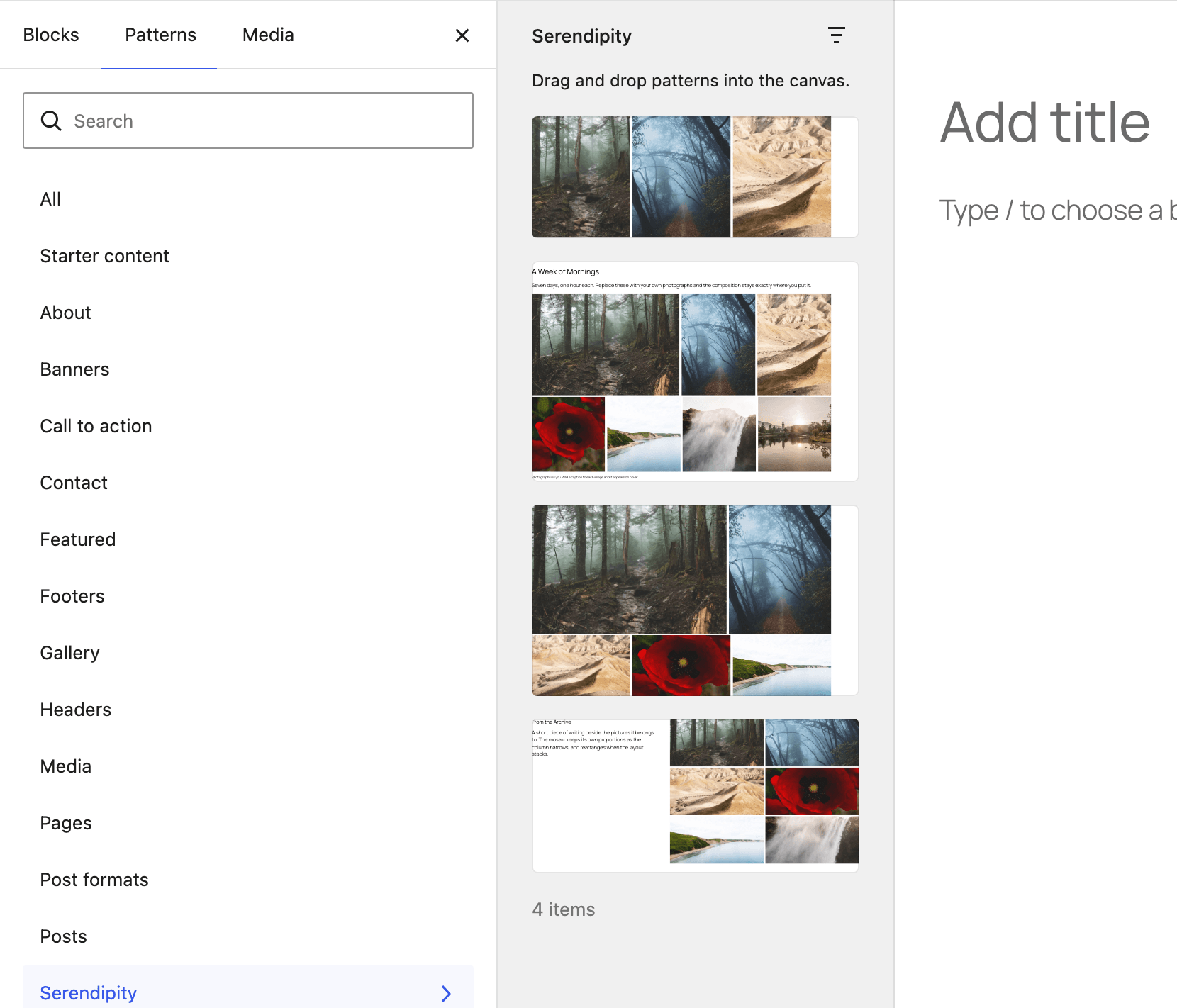
Both editions have four:
- Triptych — three images across, with a generous gap.
- Photo Essay — a heading, an introduction and a full-bleed mosaic of seven images.
- Hero Mosaic — a full-bleed opener built around one dominant image.
- Sidebar Story — writing on the left, a six-image mosaic on the right.
Serendipity Deluxe adds eight, for twelve in all:
- Contact Sheet — twelve frames at a one-pixel gap, the way a proof sheet is read.
- Portfolio Case Study — a project title, a credits row, the work, and what you did.
- Team Wall — eight portraits that turn over to show a name and a role.
- Lightbox Showcase — nine images that open in the built-in carousel, with captions and dot navigation.
- Chapter Opener — a full-bleed cover, a four-image mosaic and a caption line.
- Interleaved Essay — mosaic, pull-quote, mosaic: a long read with room to breathe.
- Event Recap — a date and place, ten images, and what happened.
- Split Feature — two images at sixty-forty, with the caption revealed on hover.
The sample photographs are public-domain (CC0) stock images.
Layout Studio (Serendipity Deluxe)
Layout Studio lets you reshape a composition by hand, right on the canvas. There is no mode to turn on: select the gallery and it is there.
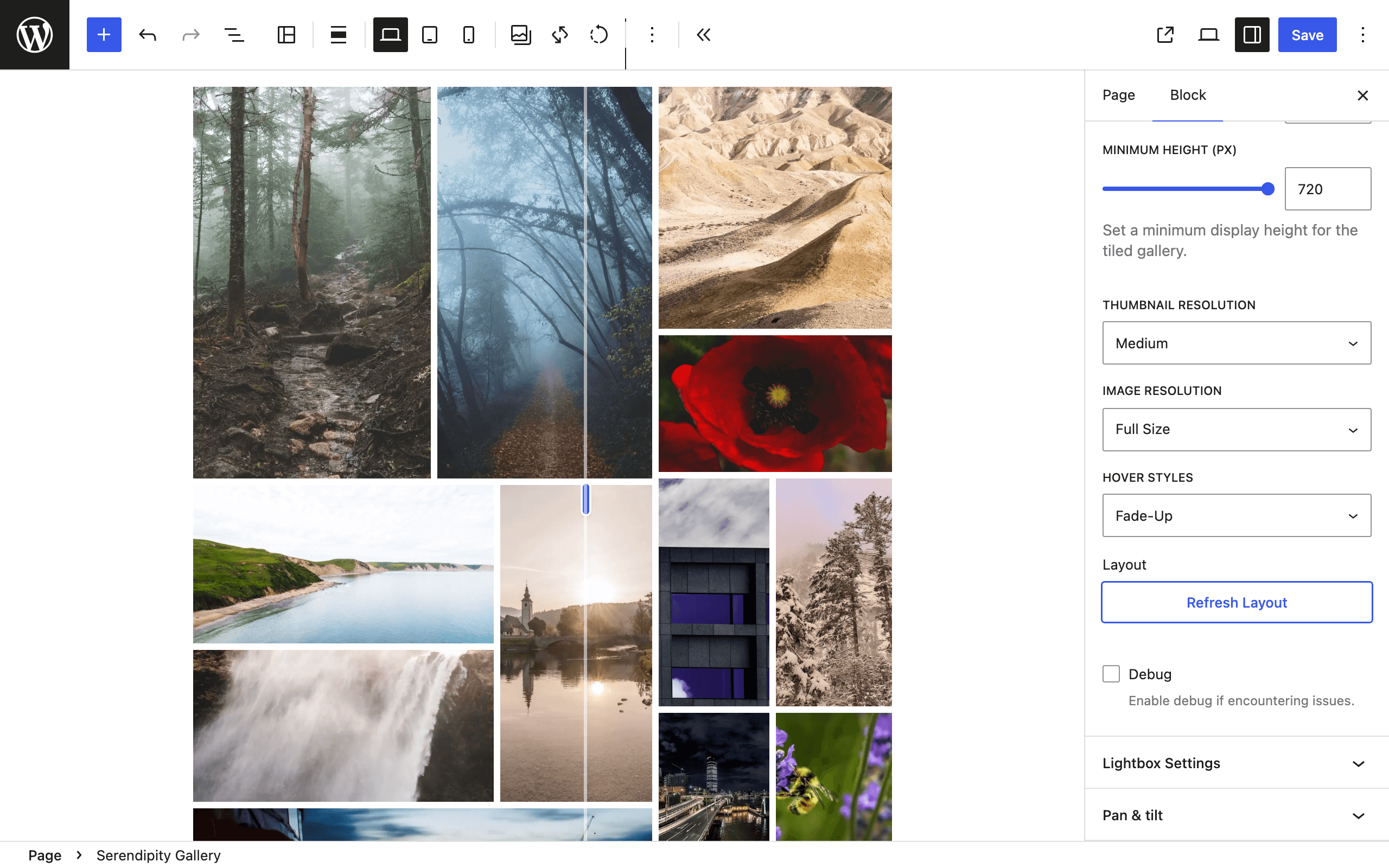
- Resize tiles. Drag the seam between two tiles to resize both. The seams are invisible until you point at one, focus it or drag it: move the pointer along the line between two tiles and the cursor changes, and a grab handle appears.
- Swap two photographs. Drag a photograph out of its tile and drop it onto another, and the two trade places.
- From the keyboard. Tab to a seam and use the arrow keys to move it a little at a time. Hold Shift to move it five times as far.
A seam stops before either tile gets too narrow to read as a photograph.
There is no separate save step. Each change is saved into the layout of the breakpoint you are on as soon as you let go, and each drag is one undo step. A breakpoint that was borrowing another's layout gets its own the moment you adjust it. As with every layout, it is stored when you save the post.
Refresh Layout and Refresh Layout & Save compose a new mosaic, and they replace a hand-adjusted one too.
In the free plugin, the block sidebar has a closed Layout Studio panel that describes it.
Pan & tilt (Serendipity Deluxe)
Every photograph is cropped to its tile, and the crop is centered. Pan & tilt chooses which part of the photograph the tile shows.
- On the canvas. Drag inside a tile to move the photograph within it.
- In the sidebar. Click a tile, or Tab to one, then open the Pan & tilt panel and use the Horizontal and Vertical sliders, from 0 to 100.
- Center this photograph puts it back in the middle.
A photograph can only move where it overflows its tile. When it already fits in one direction, that slider reads Horizontal — fixed or Vertical — fixed.
Like the tile sizes, a crop belongs to the breakpoint you made it at.
Accessibility and loading
Alt text. Each tile uses the image's own alt text from the media library, read when the page is served, so editing it there updates every gallery that uses the image. Where an image has no alt text, its caption stands in. A linked tile with neither is named by its position, such as "Open image 3 of 9". Writing alt text in the media library is the best way to describe your photographs.
The first paint. A saved layout is written into the page by the server as CSS, so the gallery is laid out when the page first appears, before any JavaScript runs.
Assets. The gallery's script and stylesheet load only on pages that contain a gallery. That includes a gallery inside a synced pattern, a template part or a block widget. WordPress itself decides which tiles load lazily, as it does for its own images.
Image sizes
Both editions register an image size named ghostlabs-serendipity-tile, 480 pixels wide and
uncropped. It gives phones a file closer to the size of a tile than WordPress's own sizes do.
WordPress makes this size for every image uploaded while the plugin is active, not only for
gallery photographs, so each upload gains one extra file. Images uploaded before then do not
have it until their thumbnails are regenerated, for example with WP-CLI's wp media regenerate.
Until then, galleries use the sizes those images already have.
To change the width, or to register no extra size at all, see For developers below.
For developers
Serendipity has no settings for the following. Each is a filter, for a theme's functions.php or
a small plugin of your own.
Add attributes to each tile's link, for a lightbox that looks for something the gallery does not carry. The filter receives the link's attributes, the image, and the block's attributes:
add_filter( 'ghostlabs_serendipity_link_attributes', function ( $attrs, $image, $attributes ) {
    $attrs['data-gallery'] = $attributes->id;
    return $attrs;
}, 10, 3 );
Load the gallery's script and stylesheet in the page's head on pages where Serendipity cannot see
the gallery in advance, such as one rendered from a custom field, a page builder or a shortcode.
Return true to load them and null, the default, to let Serendipity decide. Returning false
stops them loading in the head, but a gallery that renders still loads them as it renders:
add_filter( 'ghostlabs_serendipity_load_assets', function ( $load ) {
    return is_page( 'portfolio' ) ? true : $load;
} );
Change the width of the tile image size, or return 0 to register none:
add_filter( 'ghostlabs_serendipity_tile_size', fn() => 0 );
Your data, and removing the plugin
A gallery, its settings and its saved layouts are all part of the block, stored in the post where you put it. The plugin writes no post meta, and there is no separate gallery screen to keep in sync.
Serendipity Deluxe keeps your license key in a WordPress option named ghostlabs, under a
serendipity entry. It also keeps short-lived transients for the
license check. The free plugin stores no settings outside your posts.
Deleting either edition removes its files and leaves your data alone. There is no uninstall cleanup, by design: your galleries are in your posts, and the option is shared.
The server draws every gallery. While neither edition is active, galleries do not appear on your site. Nothing is lost: activate either edition again, and every gallery and saved layout is back.
Updates and your license (Serendipity Deluxe)
Serendipity Deluxe updates from the Plugins screen like any other plugin.
If your license expires, Serendipity Deluxe keeps working: Layout Studio, pan & tilt, the carousel, the hover styles and the patterns included. Only updates stop until the license is renewed.
External services
Serendipity, the free plugin, contacts no external service. It sends nothing on page loads, nothing in the background and nothing on a schedule. Galleries, layouts and settings never leave your site.
It does link to two GhostLabs sites from wp-admin and the block editor: theghostlab.io, and your GhostLabs account at enter.theghostlab.io. Following either link is an ordinary visit in your browser. The plugin itself requests nothing from them.
Serendipity Deluxe contacts one external service, the GhostLabs license server (enter.theghostlab.io). It does so when you save your license key, to check the license, and to offer updates. It sends your license key, your site's domain name, and the plugin's name and edition. Like every request WordPress makes, it also carries your WordPress version and your site's address. The license check's answer is kept for up to a day, so it is not a request on every page. Nothing about your visitors or your content is sent.
The built-in carousel's script and styles are served from your own site.
Requirements
- PHP 8.1 or later, for both editions
Getting help
The Help Center has contact details.