Glide is scrollytelling for the block editor, and it includes a content slider. You build each section with one Glide block. Its steps, or its slides, are Glide Slide blocks, and each one holds ordinary blocks.
The free plugin, Glide, has the Sticky Chapters layout: a contents rail that stays in view beside the steps and highlights the one being read. It also has the content slider.
Glide Pro adds three more sticky-scroll layouts, Sticky Media, Stacking Cards and Horizontal Pin. It also adds a marquee and more slide transitions for the content slider. Sections that only apply to Glide Pro say so in their heading.
Installation
Glide
Glide is not in the WordPress.org plugin directory yet, and the steps for installing it from there will be added here once it is.
Glide Pro
After you buy Glide Pro, download the plugin zip file from your GhostLabs account, and keep your license key to hand.
Then, in WordPress:
- Go to Plugins and open the Add Plugins screen, then click Upload Plugin at the top.
- Choose the zip file and click Install Now.
- Click Activate Plugin.
- Go to Settings → Glide. On the Licenses tab, paste your key into the License Key field and click Save Changes.
Switching from Glide to Glide Pro
Glide Pro is a separate plugin. Install it as above, with Glide still active. When Glide Pro is activated, it deactivates Glide.
Every block and setting stays as it was through the switch, because both plugins read the same blocks and the same settings. Glide is left installed but inactive, and you can delete it whenever you like. Glide's own Settings → Glide screen repeats these steps under Already own Glide Pro?.
Going back to Glide
If you deactivate Glide Pro and use Glide again, nothing you wrote is lost. A block in Glide Pro's marquee or parallax mode shows as a content slider. A block in one of Glide Pro's sticky layouts shows its steps as a plain stack, one after another. Chapter links change too: see Chapter links and anchors below.
Adding a Glide block
In the block editor, search the inserter for glide and add the Glide block. A new, empty block shows a layout picker headed Glide: "Choose a layout. Every one of these is editable afterwards, and the mode can still be changed in the sidebar."
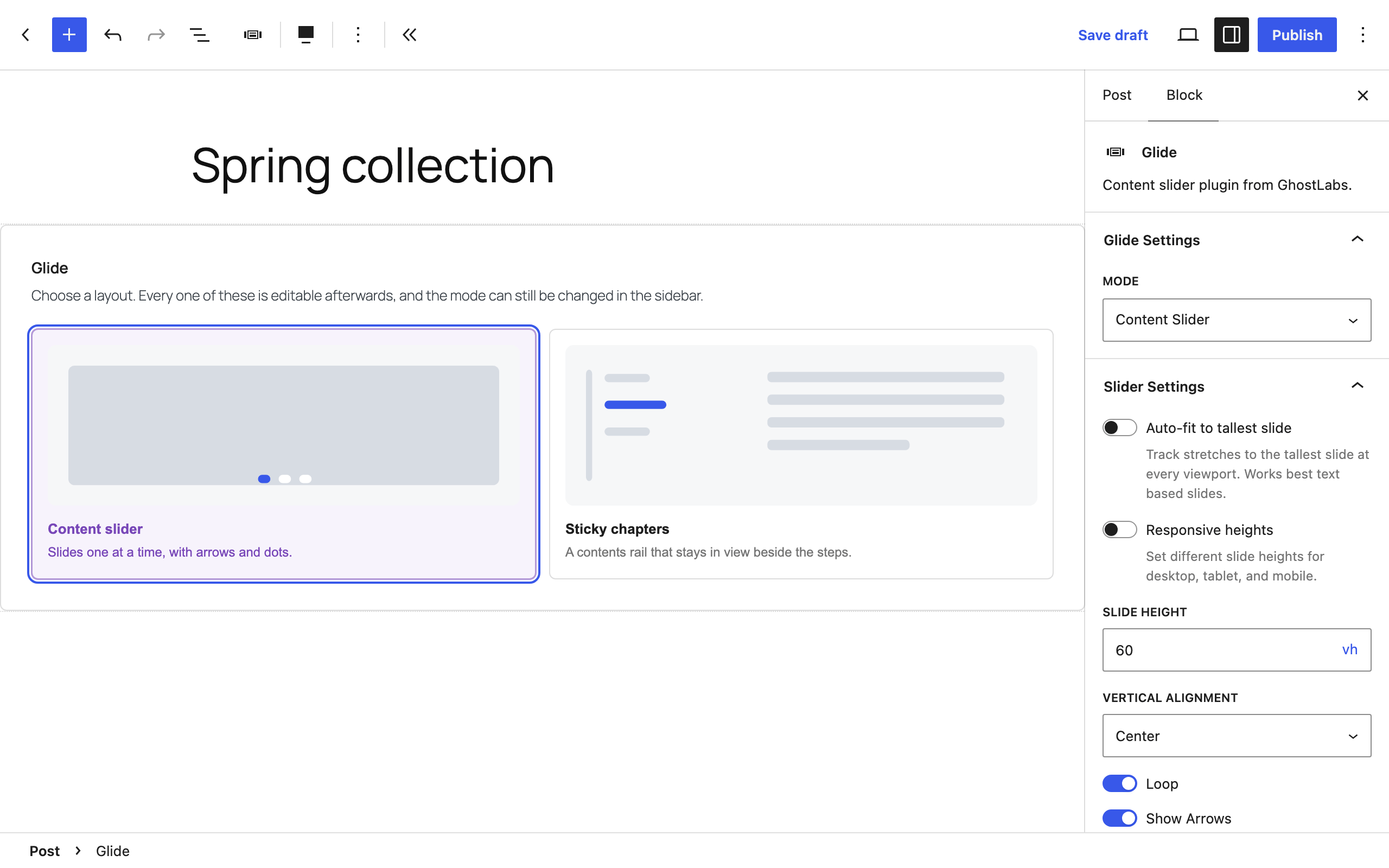
Glide offers two cards: Content slider and Sticky chapters. Glide Pro adds Marquee, Parallax, Sticky media, Stacking cards and Horizontal pin.
- Picking Content slider starts the block with one slide.
- Picking a sticky layout replaces the empty block with that layout's pattern, with its steps already written for you to replace.
The sticky layouts are also in the inserter's Patterns tab, in the Glide category.
Changing the mode later
The block sidebar's Glide Settings panel has a Mode select. Glide offers Content Slider and Sticky Scroll. Glide Pro offers Content Slider, Parallax, Marquee and Sticky Scroll.
Sticky Scroll is one mode with several layouts, and the layout comes from the pattern you pick. Choosing Sticky Scroll from the Mode select doesn't pick one. Until you insert a sticky pattern, the sidebar says "Insert a Sticky Scroll pattern to choose a layout. Each pattern brings its own settings; until then these slides render as a plain stack."
Each mode's script and stylesheet load only when a block on the page uses it, and the script loads when the block comes near the screen.
Steps and slides
Every step of a sticky layout, and every slide of a slider, is a Glide Slide block inside the Glide block. A Glide Slide can hold any block except another Glide or Glide Slide.
A new slide starts with a Cover block holding a heading and a paragraph. In Glide Pro's marquee, a new slide starts with an Image block instead. To add one, click the Add Slide button, a + at the end of the block.
In the content slider, once it has more than one slide, the block toolbar has Previous slide and Next slide buttons for moving between slides while you edit.
The Step panel
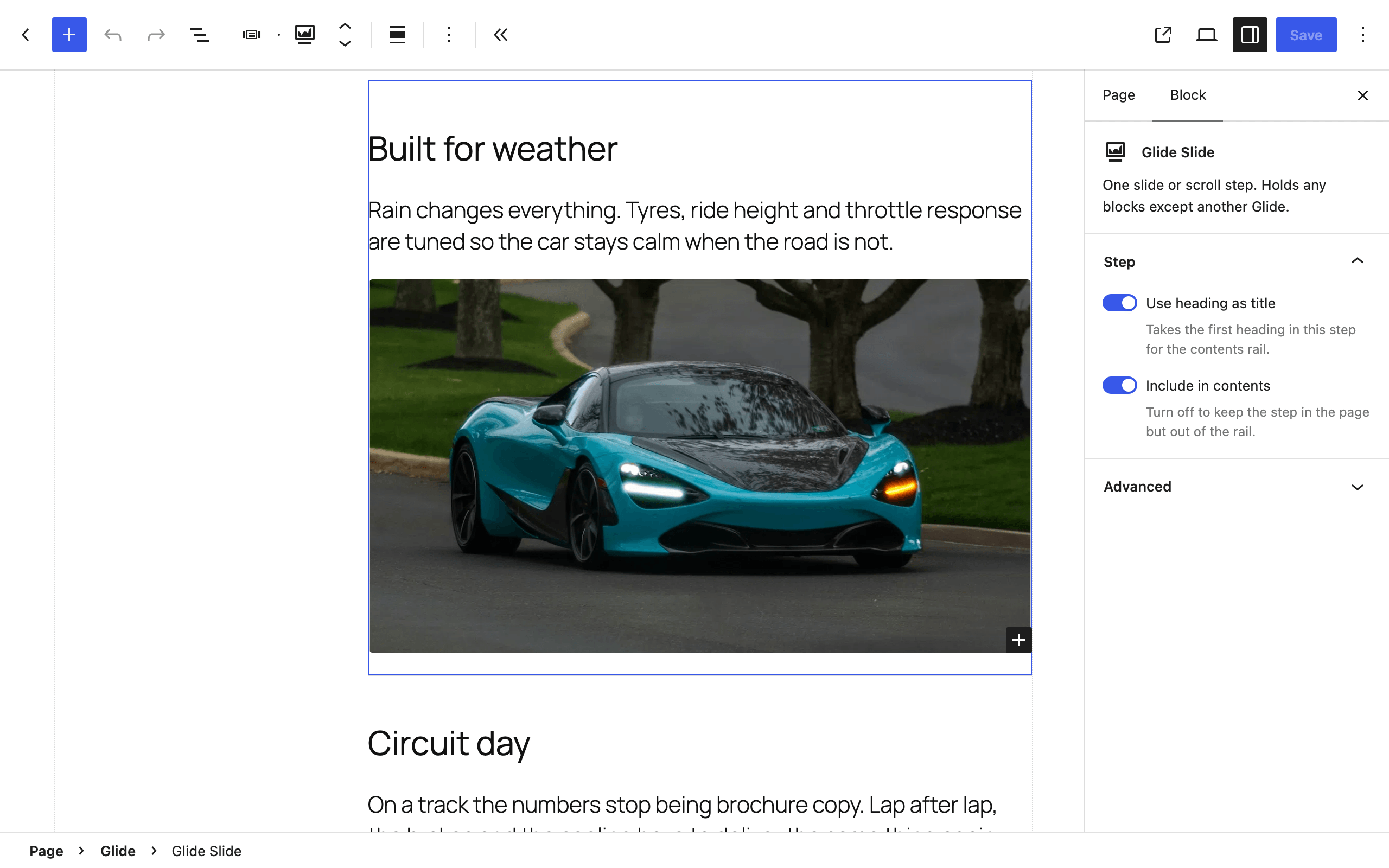
In Sticky Chapters, each step has a Step panel in the sidebar:
- Use heading as title — on to start with. It takes the first heading in the step for the contents rail.
- Step title — shown when Use heading as title is off. The rail lists the step by this text instead.
- Include in contents — on to start with. Turn it off to keep the step on the page but out of the rail.
A step with no title and no heading is listed as Step 1, Step 2 and so on.
Sticky Chapters
Sticky Chapters puts a contents rail, headed Contents, beside the steps. The rail stays in view while the steps scroll past, lists each step by its title, and highlights the one being read. Its entries are ordinary links to each step, so they work with JavaScript switched off.
Settings, under Sticky Chapters in the block sidebar:
- Rail position — Left, Right or Top bar. Left to start with.
- Rail Width (px) — from 120 to 480. 240 to start with.
- Sticky Offset (px) — the distance from the top of the screen once the rail sticks, from 0 to 400. 40 to start with.
- Marker style — Numbered, Dot or Plain. Numbered to start with.
- Show progress line — on to start with.
- Show step counter — off to start with.
- Smooth scroll — animates the jump when a chapter is clicked. On to start with. Its help text says: "Readers who ask for reduced motion always get an instant jump."
- On mobile — Unstick the rail, the default, or Horizontal scroller. Its help text says: "A rail stuck to the top of a phone viewport eats most of the screen."
Sticky Media, Stacking Cards and Horizontal Pin — Glide Pro
Glide Pro adds three more sticky-scroll layouts. Each has its own panel in the block sidebar, and its own panel on each step.
Sticky Media
A media pane holds its position while the steps scroll past it. Settings, under Sticky Media:
- Media source — Pinned or Per step. The Sticky media pattern starts on Pinned. Its help text says: "Per step crossfades the pane as each step comes into view. Pinned keeps the authored pane for the whole section."
- Media side — Left or Right. Left to start with.
- Alternate sides per section — off to start with. Its help text says: "Flips this pane to the other side when this is an even-numbered Sticky Media block on the page. Counts every Sticky Media block, not just the ones with this switched on."
- Sticky Offset (px) — from 0 to 400. 40 to start with.
- Pane aspect — 4 : 3, 1 : 1, 16 : 9, 3 : 4 or Auto. 4 : 3 to start with.
- Step Min-height (vh) — how much scrolling each step gets before the next takes over, from 20 to 200. 80 to start with.
- Transition — Fade, Slide or Scale. Fade to start with. Shown for Per step only.
- Crossfade (ms) — from 0 to 2000. 400 to start with. Shown for Per step only.
- Show progress dots — off to start with.
With Pinned, the pane is an ordinary Group block in the layout, holding an empty Image block for your picture. Edit it as you would any other block.
With Per step, each step gives the pane its own image, in the step's Step Media panel:
- Image — "Shown in the sticky pane while this step is in view. Leave empty and the pane keeps the previous step’s image."
- Alt text and Media fit (Cover or Contain), shown once an image is chosen.
Stacking Cards
Each step is a card that sticks near the top of the screen, and the next card slides over it. Settings, under Stacking Cards:
- Stick Offset (px) — from 0 to 400. 40 to start with.
- Stagger per card (px) — how much lower each card rests than the one before, from 0 to 80. 12 to start with.
- Scale outgoing — from 0.5 to 1. 0.94 to start with.
- Rotate outgoing (deg) — from −15 to 15. 0 to start with.
- Shadow — None, Small, Medium or Large. Medium to start with.
Each card has a Card panel with Keep in stack, on to start with. Turn it off and that card scrolls away like ordinary content instead of joining the pile.
Horizontal Pin
The section holds still while a row of panels travels sideways across it, then releases and carries on down the page. Settings, under Horizontal Pin:
- Panels per view — from 1 to 6, in quarters. 1.25 to start with. A fraction leaves the next panel peeking in at the edge.
- Pin Duration (vh) — how much page scroll the whole traverse takes, from 100 to 800. 300 to start with. Longer is slower, not further.
- Gap (px) — from 0 to 120. 32 to start with.
- Easing — Linear or Smoothed. Linear to start with.
- Show progress bar — on to start with.
- Snap to panel — off to start with. It applies to the page scroll, so it is switched on only while the section is in view.
- Reduced motion — Stack vertically, the default, or Keep pinned. See Reduced motion below.
The panel always shows this warning: "A pinned section takes over the scroll direction for as long as it lasts. Keep the duration short and leave the progress bar on so readers can see where they are."
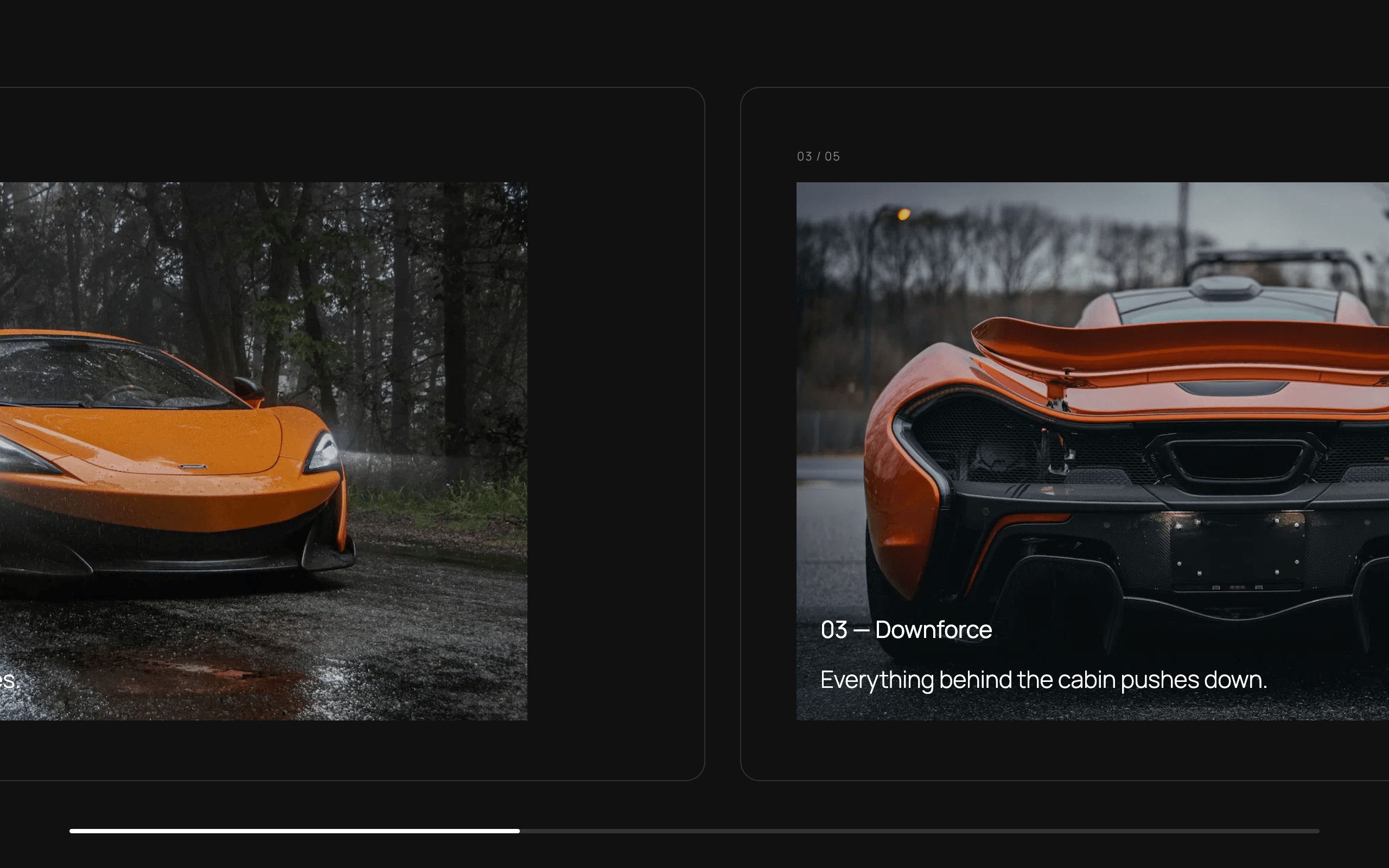
Each panel has a Panel panel with Panel width (%), from 0 to 100. Zero uses the section's Panels per view, and anything else sets the width of that panel alone.
Chapter links and anchors
Each Sticky Chapters step has an ID, and the rail links to it.
In Glide, each step's ID is numbered, such as #ghostlabs-glide-step-3. The number is counted
across the whole page as it renders, so it is not the step's position, and it can change when the
page changes.
In Glide Pro, each step's anchor is made from its title, so a step titled Overview links as
#overview, and you can link to it from elsewhere. Each step also has an Anchor panel, with an Anchor field for pinning one. Its
help text says: "Any text works. It becomes lowercase words joined by hyphens, so “Q&A: Pricing”
links as #qa-pricing. Leave empty to use the step’s title; set one to keep links working when the
title changes. If another step on the page already uses it, this one gets -2."
Above that help text, the field shows the anchor the step will get, such as Links as #overview, from the step’s title.
- Without a pinned anchor, a step's anchor follows its title, so editing the heading changes the link.
- A step whose title and anchor have no letters or digits links as
#step-1,#step-2and so on, by its position. - Going from Glide Pro back to Glide changes every anchor back to the numbered IDs, so links shared while you used Glide Pro stop pointing at their steps.
The content slider
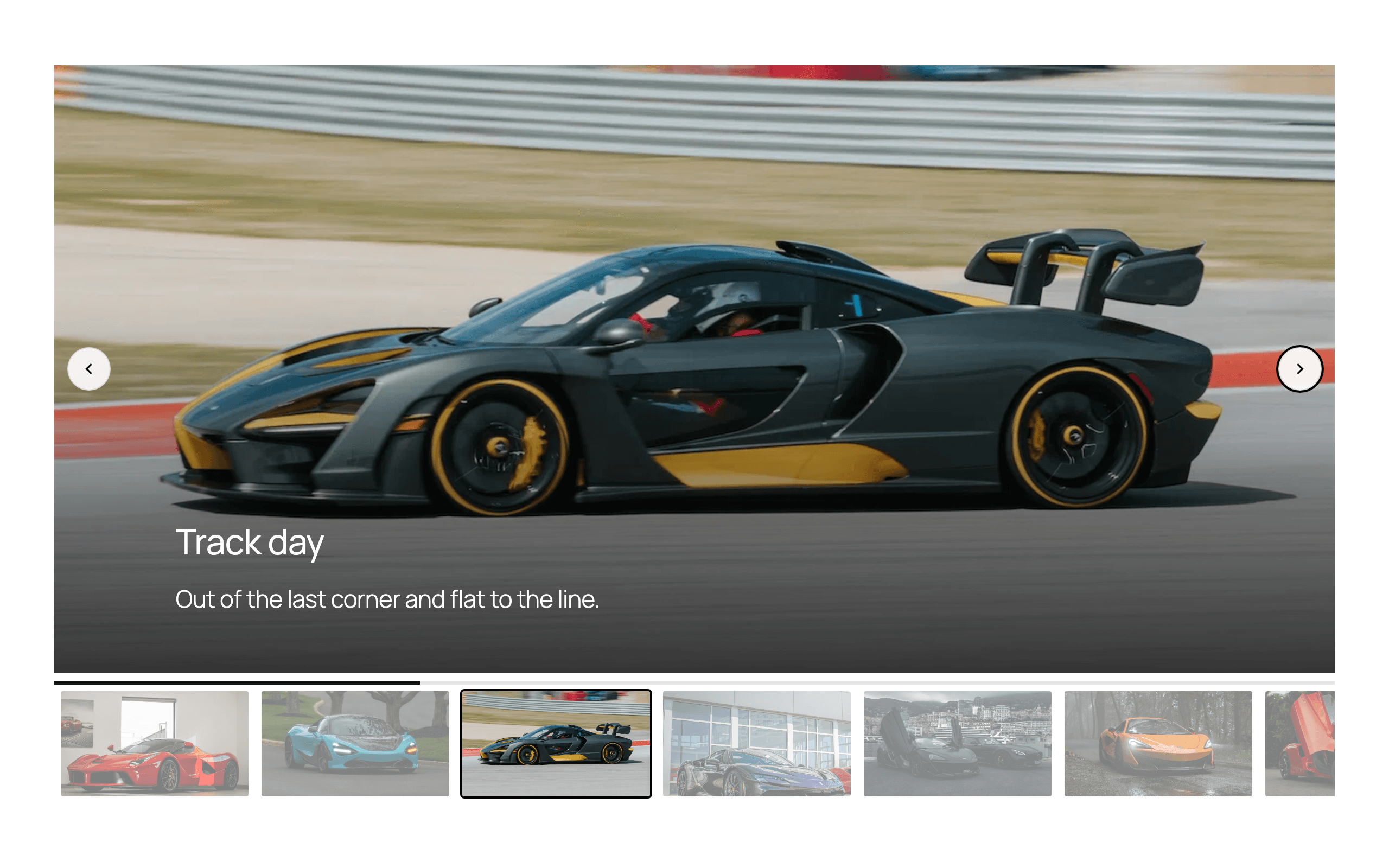
The content slider shows its slides one at a time, with arrows and dots to start with. Choosing it sets the block to full width. Settings, under Slider Settings:
- Auto-fit to tallest slide — off to start with. The slider takes the height of its tallest slide at every screen size. Its help text says it suits text-based slides.
- Responsive heights — off to start with, and hidden while Auto-fit to tallest slide is on. It sets a separate Desktop Height (px), Tablet Height (px) and Mobile Height (px), each from 100 to 1200, and 600, 450 and 300 to start with. Tablet applies at 1024 pixels wide or narrower, and mobile at 600 or narrower.
- Slide Height — in vh, px or %, when neither of the above is on. 60vh to start with.
- Vertical Alignment — Top, Center or Bottom. Center to start with.
- Loop — on to start with.
- Show Arrows — on to start with.
- Navigation — Dots, Progress Bar or None. Dots to start with.
- Auto-hide Controls — hides the controls until hover or keyboard focus. The sidebar warns: "Controls are hidden until hover or keyboard focus. Users who rely on touch without hover may need an extra tap to discover controls."
- Slides Per View — from 1 to 6. 1 to start with. On a screen 600 pixels wide or narrower, the slider shows one slide at a time whatever this says.
- Gap (px) — from 0 to 100. 0 to start with.
- Speed — from 1 to 20. 6 to start with.
- Drag Free — off to start with.
- Autoplay — off to start with. When it is on, Autoplay Interval (ms) sets the time on each slide, from 1000 to 10000, and 5000 to start with. The slider also shows a pause button.
Tweens
The Tweens panel sets how one slide gives way to the next. Glide has Fade Transition. Glide Pro adds Parallax, Scale and Barn Doors.
- One tween at a time. Turning one on turns the others off, and None turns them all off.
- Tweens need Slides Per View at 1. Above that, they are disabled with the note "Requires 1 slide per view.", and raising Slides Per View turns off any tween that was on.
Thumbnails
Show Thumbnails is off to start with. Turn it on to show a strip of thumbnails, and set its Position: Bottom, Top, Left or Right. Bottom to start with.
Each thumbnail is the slide's video poster, or else the first image in the slide. A slide with neither shows a video icon if it has a video background, or else its number.
Overlay
The Overlay panel's Enable overlay adds a Glide Overlay block: content shown on top of the slider, with its own background color, text color and padding. A slider has one at most.
Turning the overlay on also switches Show Arrows off and Autoplay on. Turning it off switches Show Arrows back on and Autoplay off.
Keyboard
When the slider has keyboard focus, the left and right arrow keys move between slides. There is no setting for it. In the thumbnail strip, the arrow keys move between thumbnails, and Home and End go to the first and last.
Video backgrounds
A slide in the content slider can have a video behind its content, set in the slide's Video Background panel. Glide Pro also offers it in the parallax mode. The panel isn't shown in Sticky Scroll, or in Glide Pro's marquee.
- Source — File, for a video from your Media Library, or URL.
- Video — with File, click Select video.
- Video URL — with URL: "Paste a YouTube, Vimeo, or other oEmbed-compatible URL."
Once you have chosen a video or entered a URL, the panel adds:
- Poster image — "Shown before the video loads. Also used as the thumbnail image."
- Autoplay, Loop and Muted — all on to start with. With Autoplay on and Muted off, the panel notes: "Autoplay requires muted in most browsers."
- Show controls — off to start with. Turn it on to give the slide play and mute buttons. This works for a video from your Media Library, YouTube or Vimeo.
Glide fills in the poster for you where it can:
- When you choose a video from your Media Library that has no thumbnail of its own, Glide makes a
poster from a frame two seconds in. If your server has
ffmpeg, the frame is taken there. Otherwise the editor takes it in your browser. Either way, the poster is saved to your Media Library as a new image. - When you paste a YouTube or Vimeo URL, the editor fetches that video's thumbnail as the poster.
Marquee and Parallax — Glide Pro
Marquee
A continuous loop of slides that keeps moving. A new marquee slide starts with an Image block. Settings, under Marquee Settings:
- Slide Height — in vh, px or %. 15vh to start with.
- Speed — from 10 to 200. 50 to start with.
- Direction — Left, Right, Up or Down. Left to start with.
- Pause on Hover — on to start with.
- Pause Button — Visible, On focus only or Hidden. On focus only to start with. Choosing Hidden shows a warning: "Hiding the pause button can fail WCAG 2.2.2. Keyboard and touch users will have no way to stop the motion."
- Gap (px) — from 0 to 200. 40 to start with.
The marquee also pauses while something inside it has keyboard focus.
Parallax
Slides that drift at different speeds as the page scrolls. Settings, under Parallax Settings:
- Intensity — from 0 to 100. 50 to start with.
- Scrub — on to start with. It ties the animation's progress directly to the scroll position.
- Pin — off to start with. It pins the section while the page scrolls through its slides.
- Depth — how much slower the text moves than the background, from 0 to 100. 0 to start with.
Each slide has its own Parallax Settings panel:
- Parallax Speed — how fast this slide moves relative to the scroll, from 0 to 1. 0.5 to start with.
- Parallax Direction — Vertical or Horizontal. Vertical to start with.
- Depth — overrides the block's Depth for this slide. 0 uses the block's setting.
The Testimonial pattern and the rating block
The Testimonial pattern, in the Glide category, is the content of one slide: a title, a 5-star rating, a quotation and an author citation. Insert it into a Glide Slide, then replace its text with your own.
Its rating is a Glide Testimonial Rating block, which can only be placed inside a Glide Slide. It shows from 1 to 5 stars. To change the number, click the star button in the block toolbar, labelled Rating: 5 / 5 to start with, and set Stars. The block toolbar also sets its alignment.
Reduced motion
A reader can ask their device for reduced motion. When they do, each layout behaves like this:
- Content slider — autoplay starts paused. The pause button still works, so the reader can start it.
- Sticky Chapters — chapter jumps are instant, even with Smooth scroll on.
- Sticky Media (Glide Pro) — the pane changes without its transition.
- Stacking Cards (Glide Pro) — the cards still stack, without scaling, rotating or fading.
- Horizontal Pin (Glide Pro) — the panels stack vertically down the page, unless Reduced motion is set to Keep pinned.
- Marquee (Glide Pro) — it starts paused.
- Parallax (Glide Pro) — the slides don't move.
Updates and your license — Glide Pro
Glide Pro updates from the Plugins screen like any other plugin.
Each license covers the number of sites you bought it for. If it expires, Glide Pro keeps working: every block, layout and setting, and the chapter anchors. Only updates stop until the license is renewed.
External services
YouTube and Vimeo, only on a slide whose video background is a YouTube or Vimeo URL. The
reader's browser loads the video player from www.youtube.com or player.vimeo.com. The player's
address carries the video's ID and the slide's playback settings. YouTube's also carries your
site's address, and Vimeo's asks Vimeo not to track the viewer. YouTube's
terms and privacy policy,
and Vimeo's terms and privacy policy,
apply. If the slider shows thumbnails, the reader's browser also loads that video's thumbnail image
from YouTube or Vimeo, unless you replaced the poster with your own image.
While you are editing, pasting a video URL fetches a thumbnail for the slide: from
img.youtube.com for YouTube, and from Vimeo's public oEmbed address for Vimeo. Your browser makes
that request. It carries only the video's ID for YouTube, or the URL you pasted for Vimeo.
Other video providers. For a video URL from any other provider, your server asks that provider for its player through WordPress's own oEmbed support when the page is shown, and the reader's browser then loads the player from that provider.
ffmpeg, on your own server. If your host has ffmpeg, Glide runs it to make a video poster
from a file already in your uploads folder. Nothing is sent anywhere. Without it, the poster is
made in your browser instead.
The GhostLabs license server (enter.theghostlab.io) — Glide Pro only. To check and activate your license and to offer updates, the plugin sends your license key, your site's domain name, and the plugin's name and edition. Like every request WordPress makes, it also carries your WordPress version and your site's address. The license check's answer is cached for up to a day. Nothing about your visitors or your content is sent.
Requirements
- PHP 8.1 or later
Getting help
The Help Center has contact details.